

Created
:2025.10.30

Showcase is a feature designed to enhance the sharing of trading performance through Myforex portfolios. By using showcase, you can share a list of your selected portfolios and also display the URLs of your social media accounts and your contact email address, enabling you to connect with other users.
For a more detailed explanation of Showcase, please refer to the following article.
Related articles: What is a showcase and what can it do?
After logging in to Client Manager, open the left sidebar and choose "Showcase list / Create" under "Showcase".
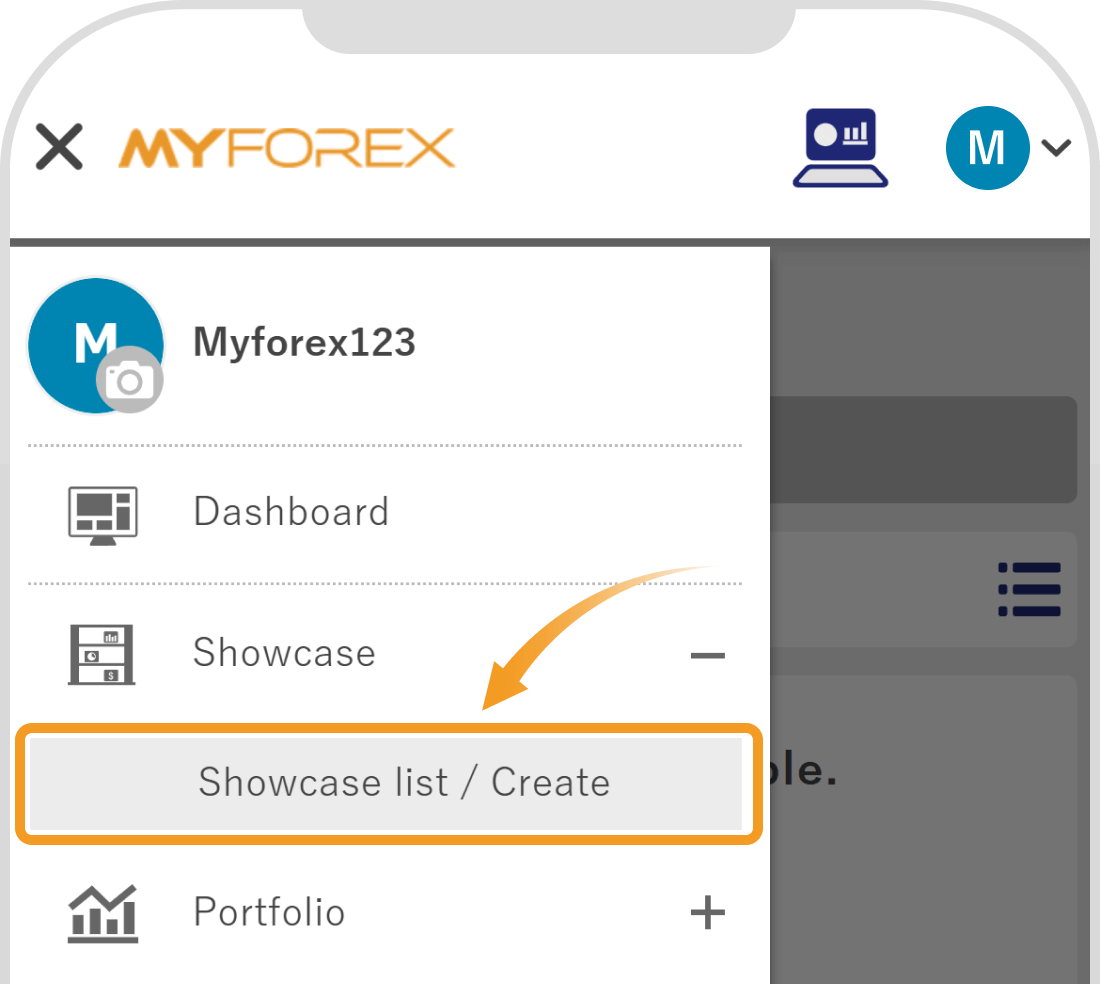
After logging in to Client Manager, tap the 3 lines icon in the top left corner and choose "Showcase list / Create" under "Showcase".
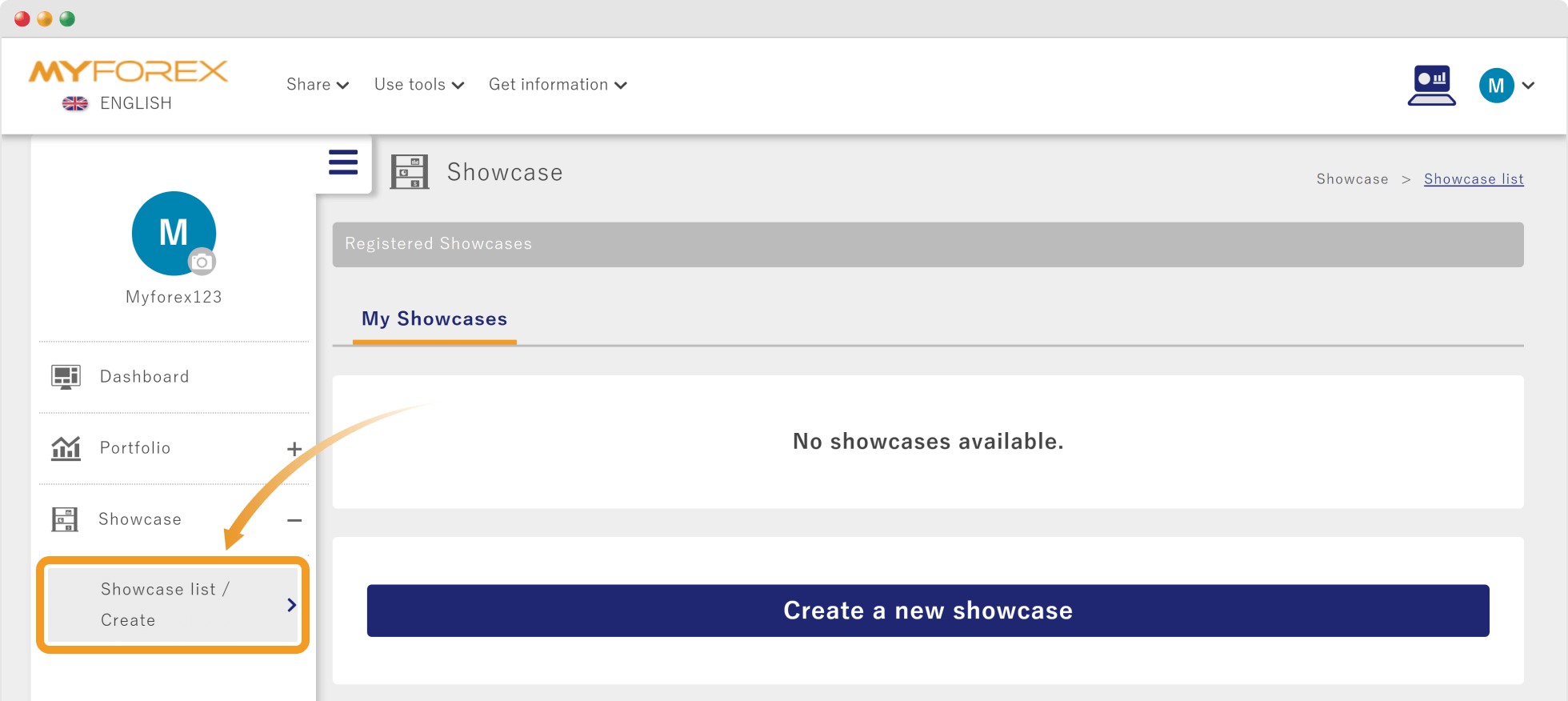
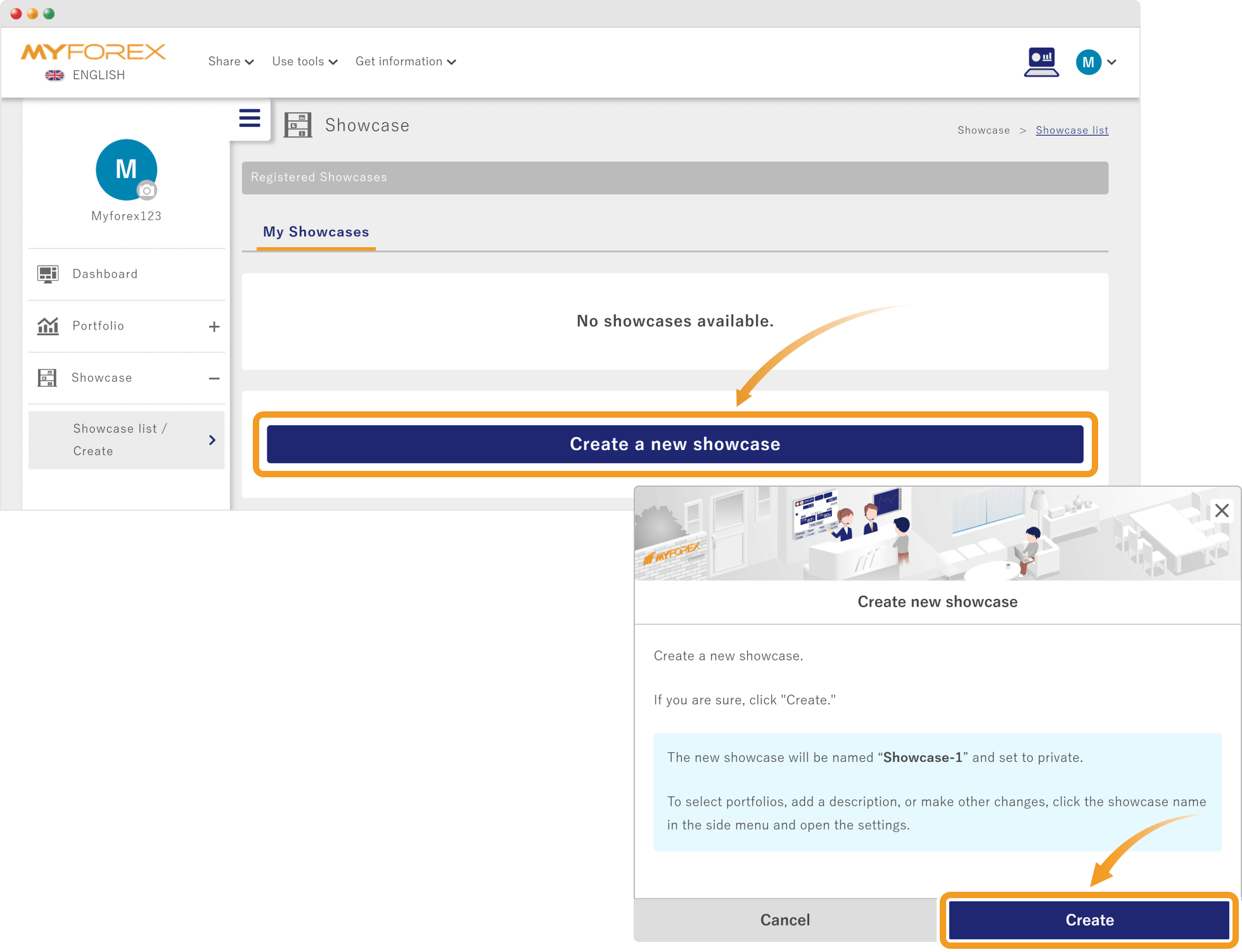
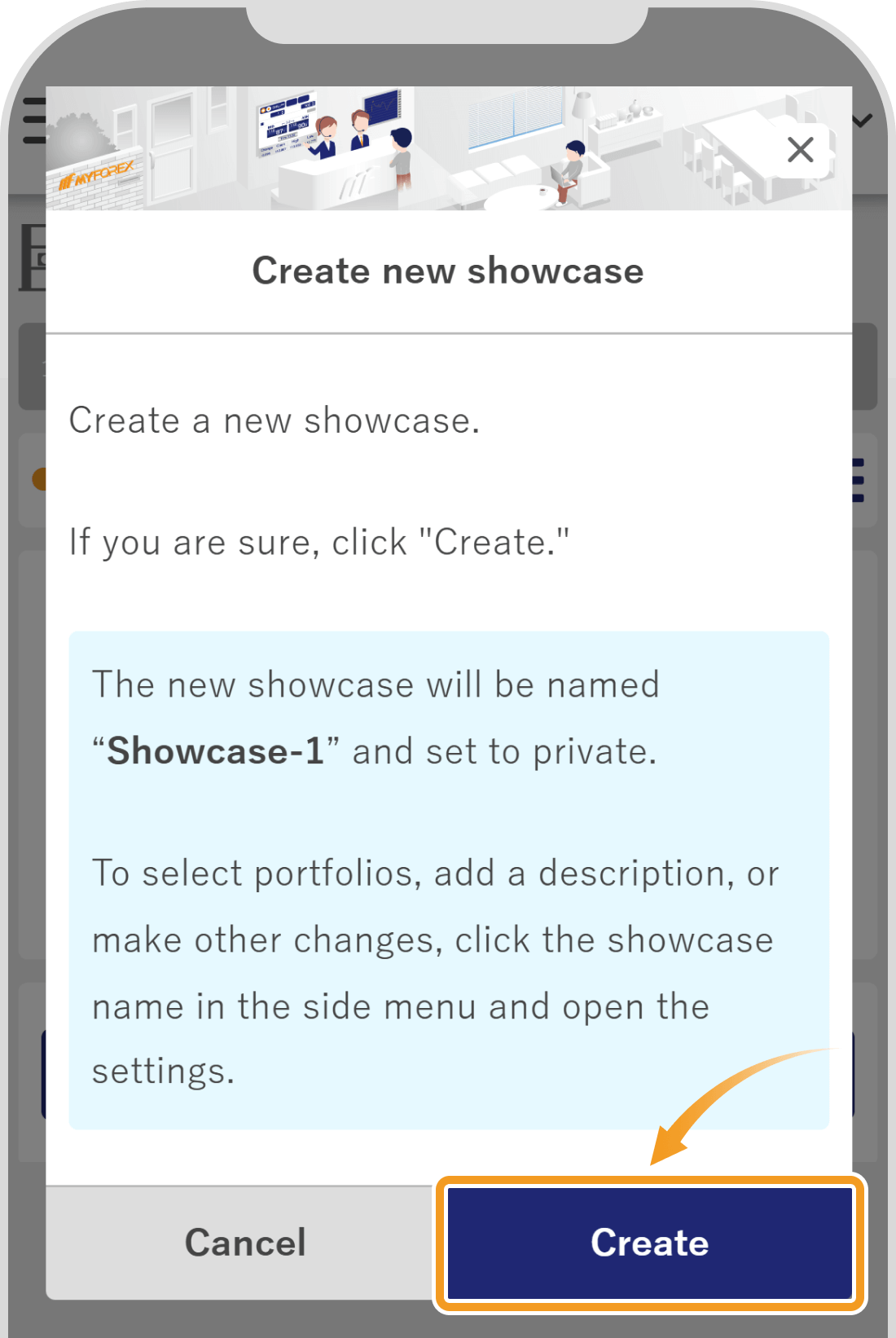
Click "Create a new showcase" and then select "Create".
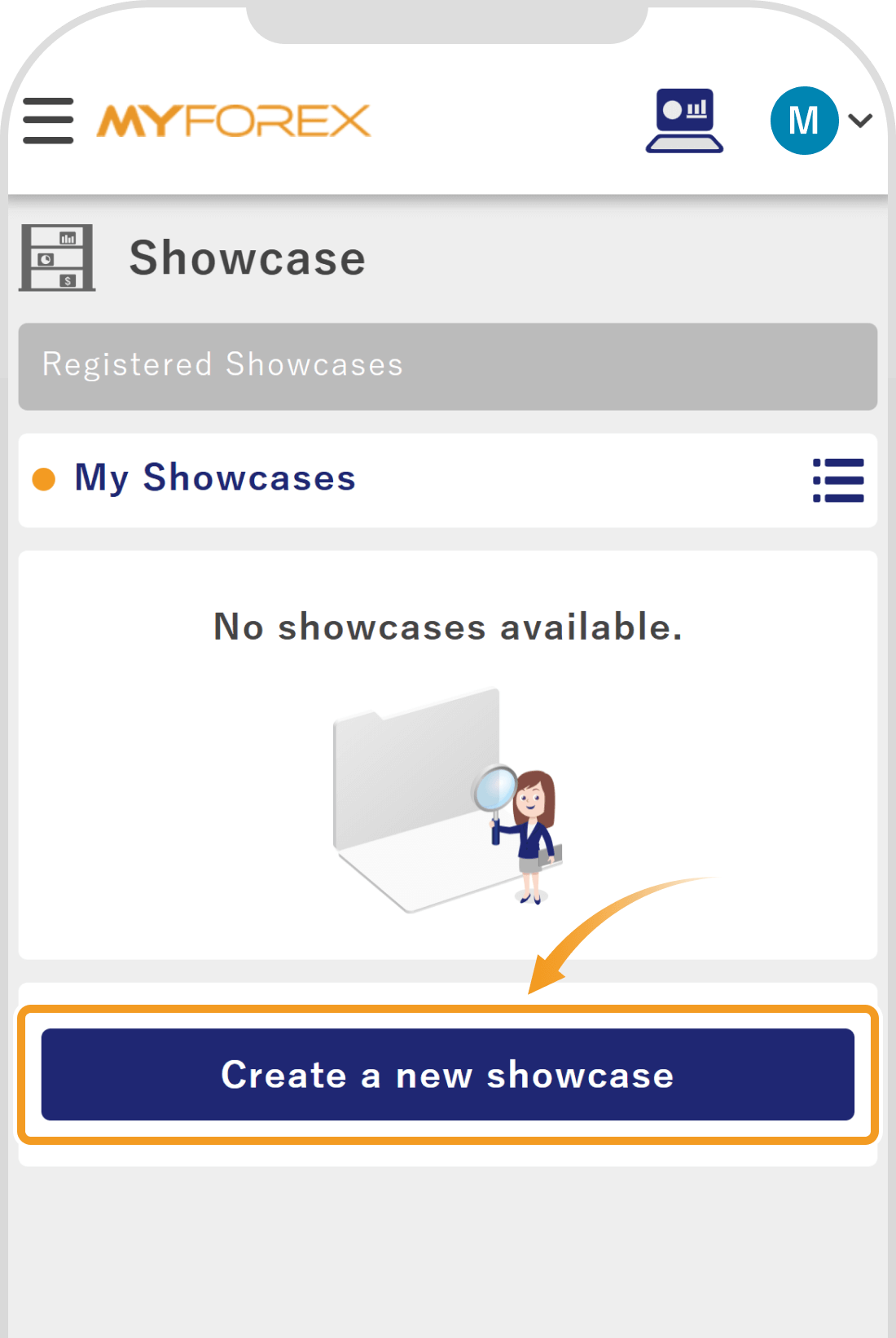
Tap "Create a new showcase" and then select "Create".

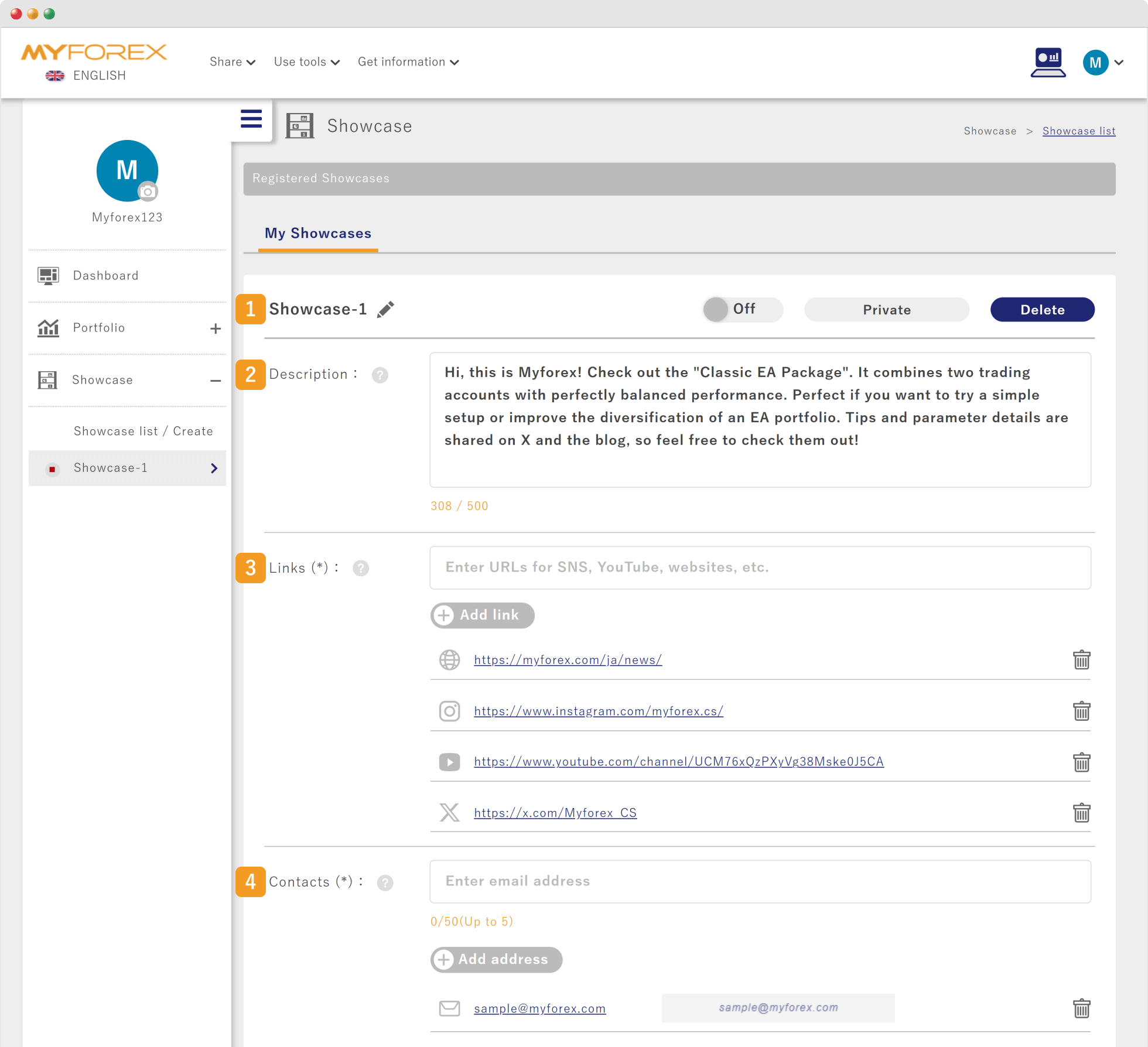
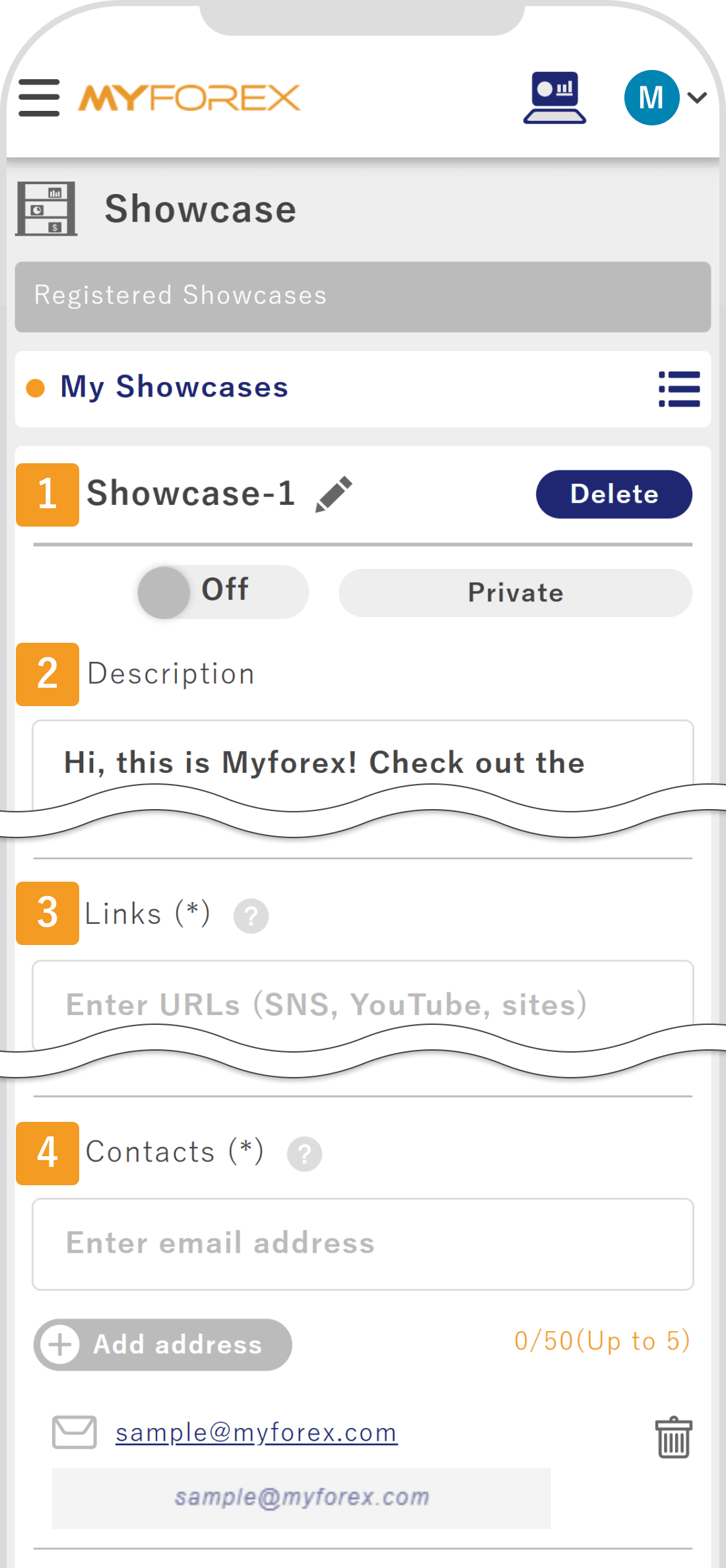
The showcase editing screen will be displayed. On this page, you may set the showcase name as well as other display-related settings.
Set up the basic showcase information, such as (1) the showcase name, (2) description, (3) links to SNS or websites, and (4) contact details.
Number | Item | Description |
|---|---|---|
1 | Showcase name | Click the pencil icon to edit the name, and save your changes by clicking the "Change" button. Please enter a name that clearly reflects the purpose or theme of the Showcase. |
2 | Description | Enter a description for the showcase. It will be automatically saved when you click outside the input area. Please provide a concise summary of the information you wish to convey to viewers, such as your trading style or the characteristics of your portfolio. |
3 | Links | Enter the URLs of your social media accounts or website, and click "Add link" to save them. Unnecessary links can be removed by clicking the trash icon. You can register external links such as social media or websites so that viewers can learn more about the showcase creator. |
4 | Contacts | Enter your email address and click "Add address" to save it. Any unnecessary contacts can be removed by clicking the trash icon. Please provide contact information that can be made public, such as an email address for inquiries. |
Number | Item | Description |
|---|---|---|
1 | Showcase name | Tap the pencil icon to edit the name, and save your changes by tapping the "Change" button. Please enter a name that clearly reflects the purpose or theme of the showcase. |
2 | Description | Enter a description for the Showcase. It will be automatically saved when you tap outside the input area. Please provide a concise summary of the information you wish to convey to viewers, such as your trading style or the characteristics of your portfolio. |
3 | Links | Enter the URLs of your social media accounts or website, and tap "Add link" to save them. Unnecessary links can be removed by clicking the trash icon. You can register external links such as social media or websites so that viewers can learn more about the showcase creator. |
4 | Contacts | Enter your email address and tap "Add address" to save it. Any unnecessary contacts can be removed by clicking the trash icon. Please provide contact information that can be made public, such as an email address for inquiries. |
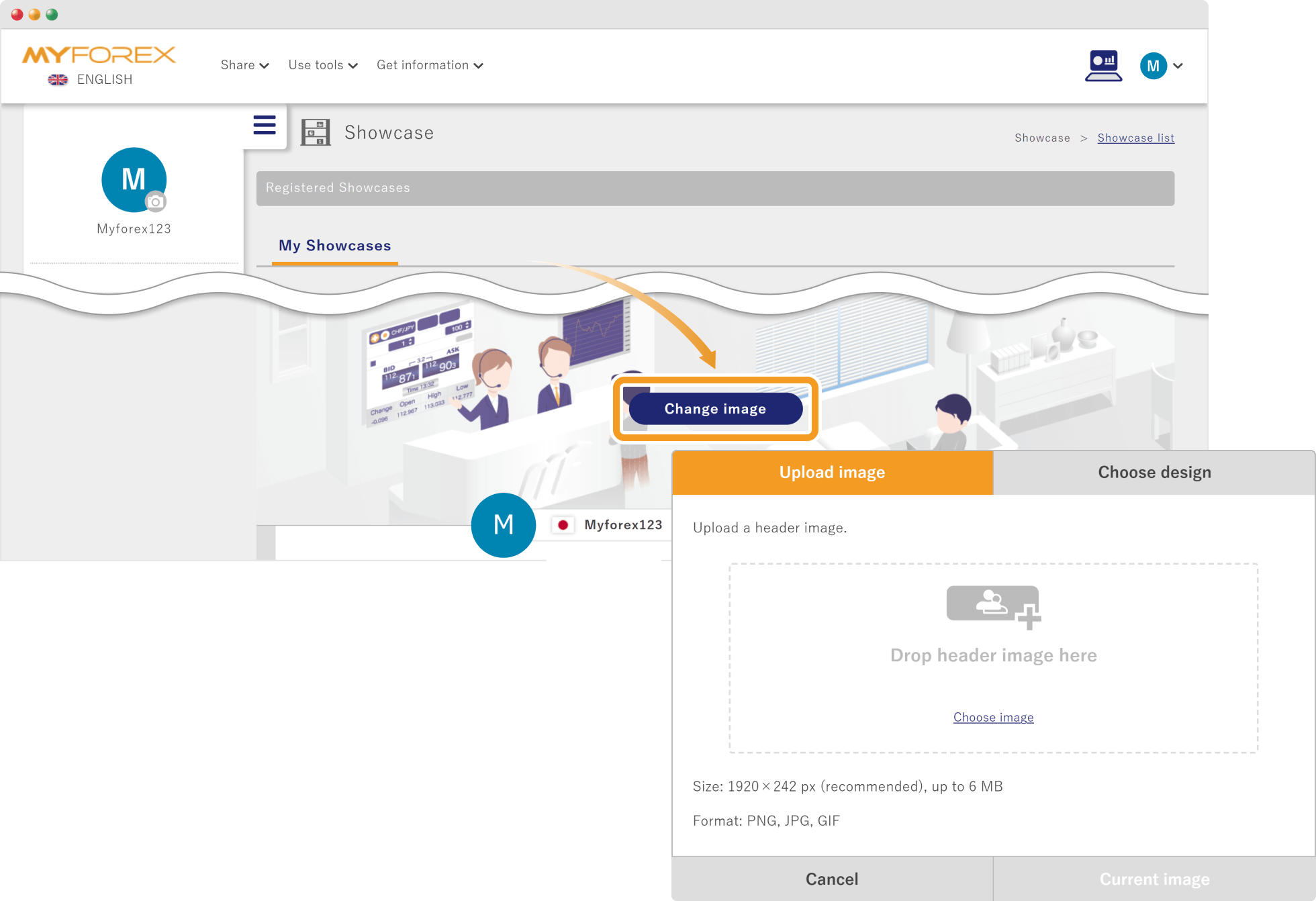
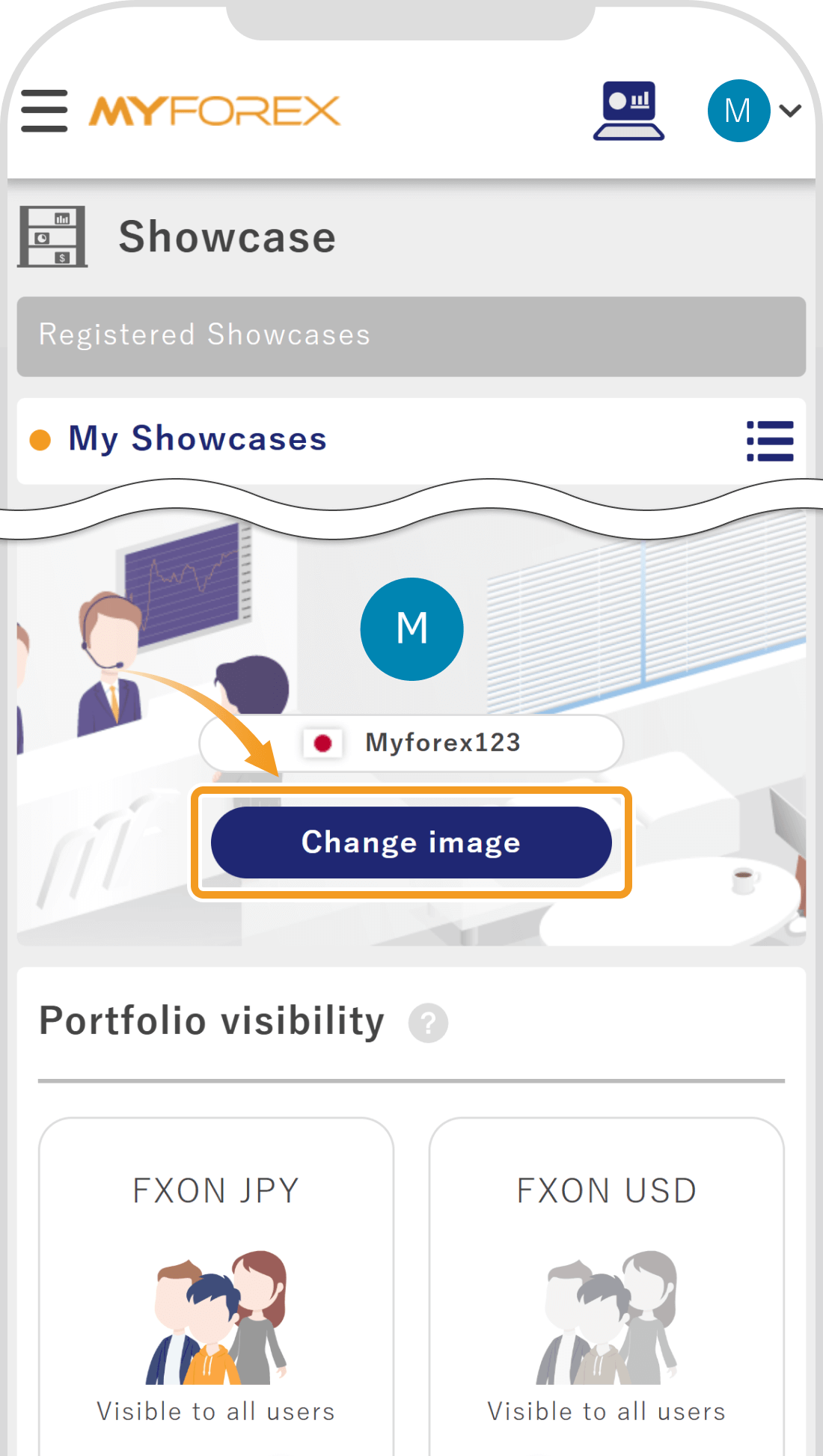
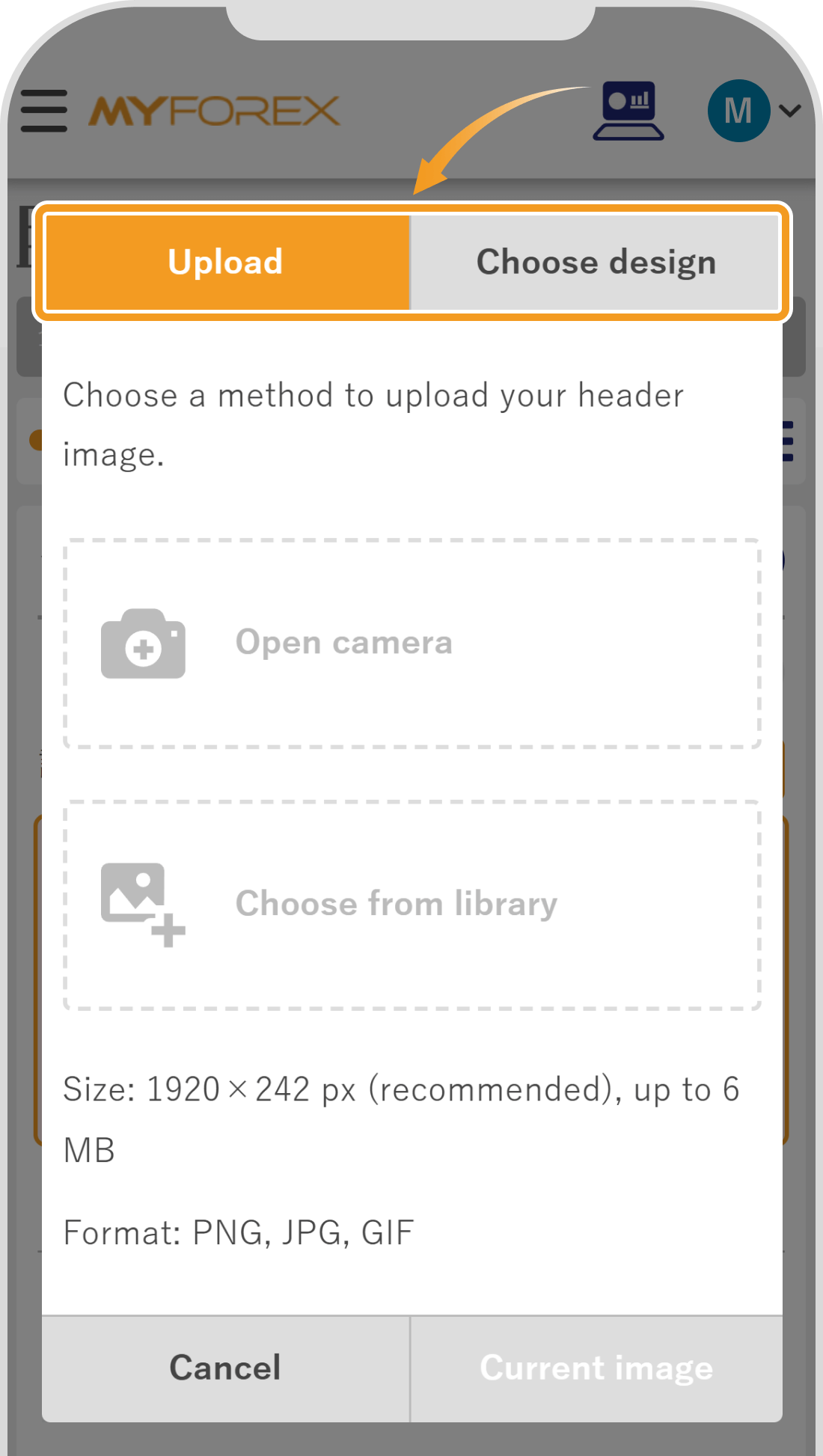
Scroll down on the showcase settings screen, and under "Change image", select "Upload Image" or "Choose design" to customize the header image of your showcase according to your trading style or desired theme.
Scroll down on the showcase settings screen, and under "Change image", select "Upload" or "Choose design" to customize the header image of your showcase according to your trading style or desired theme.
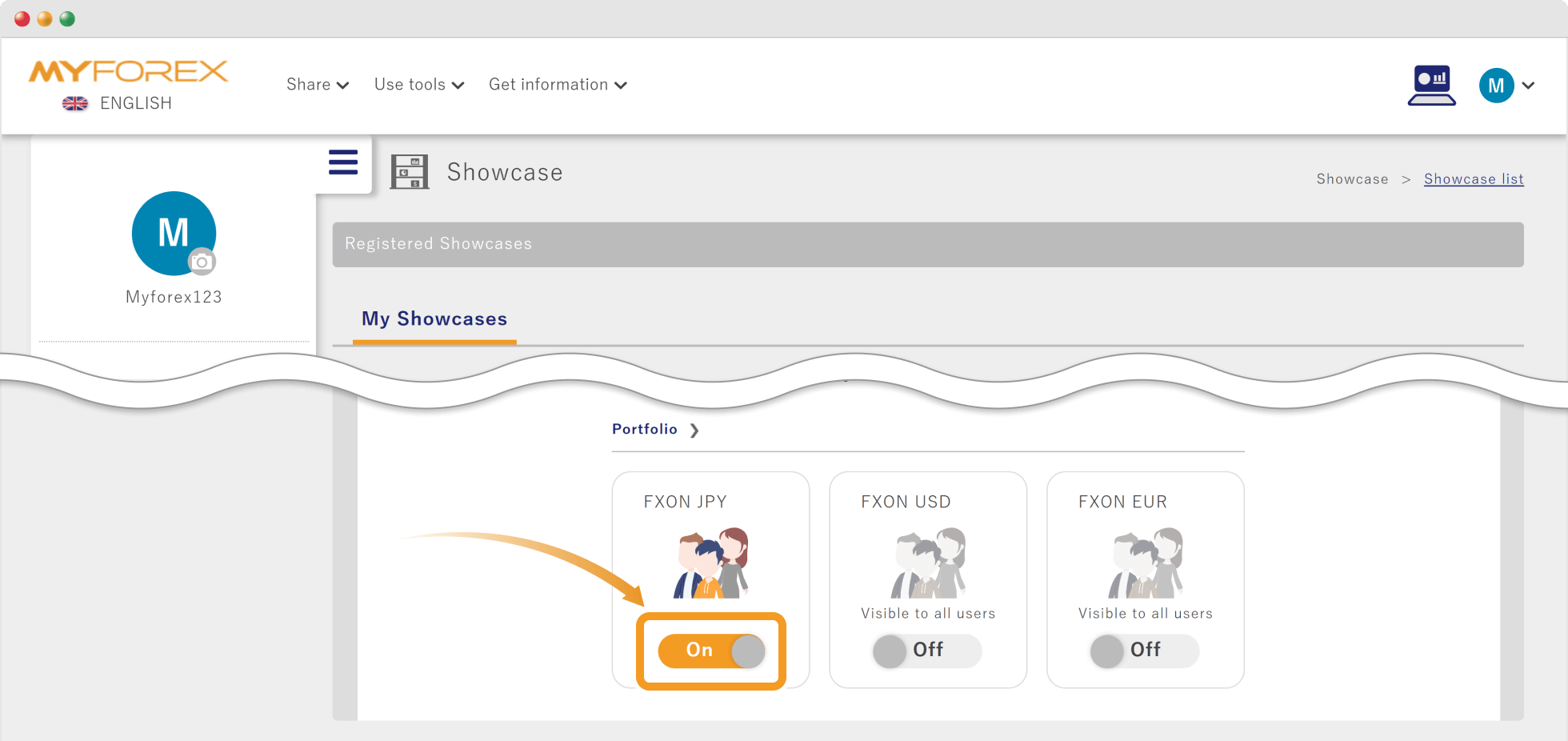
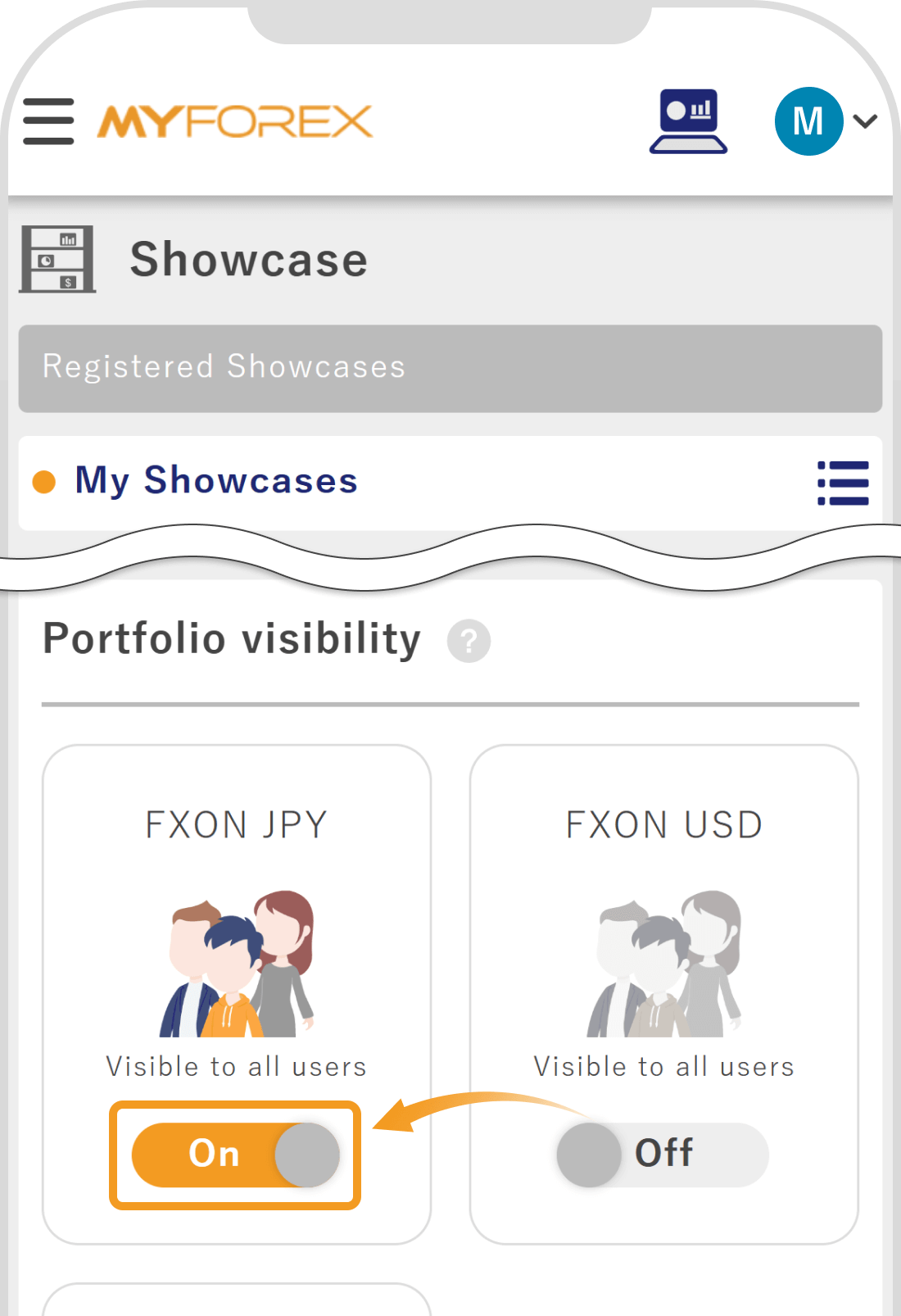
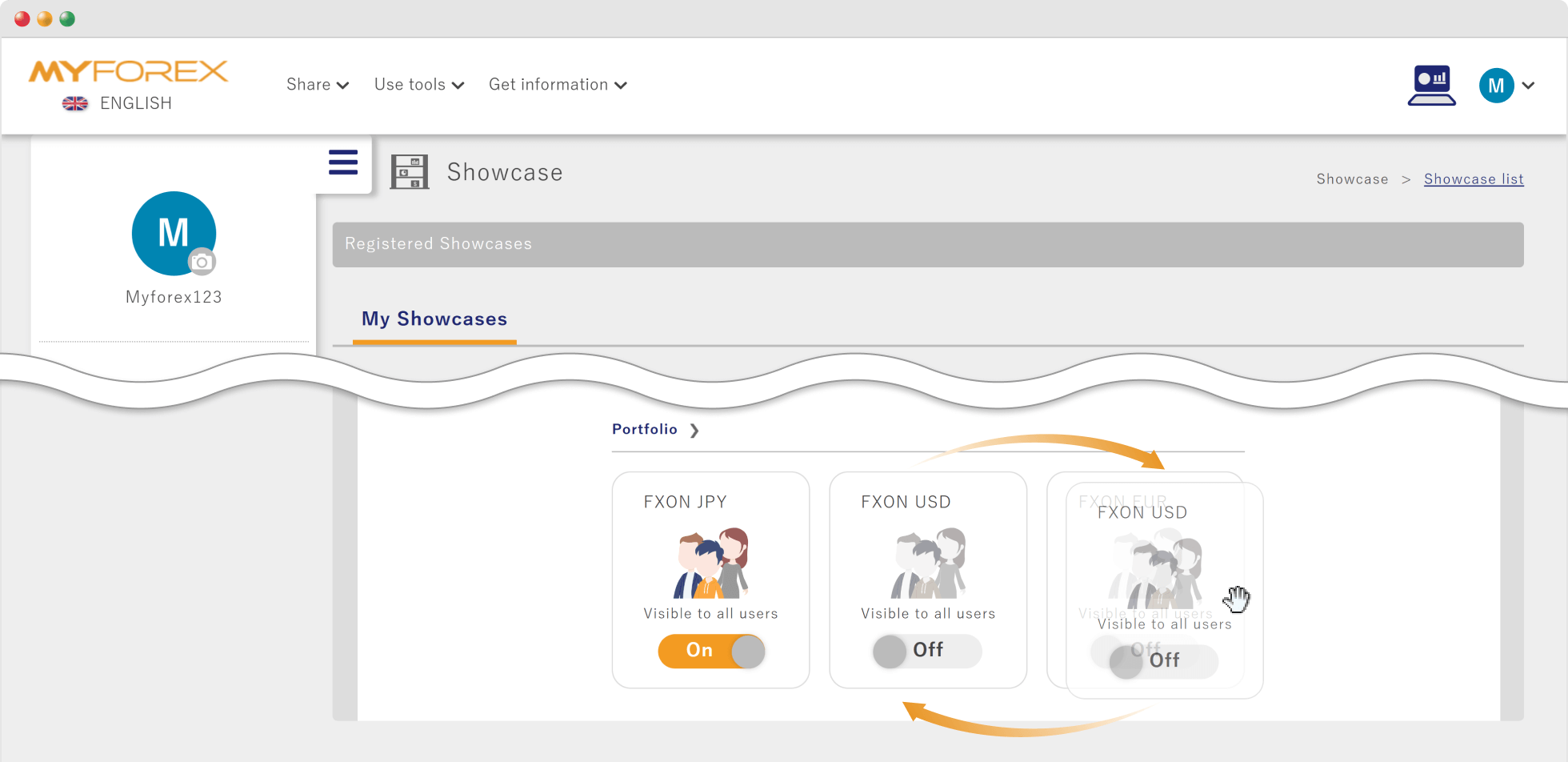
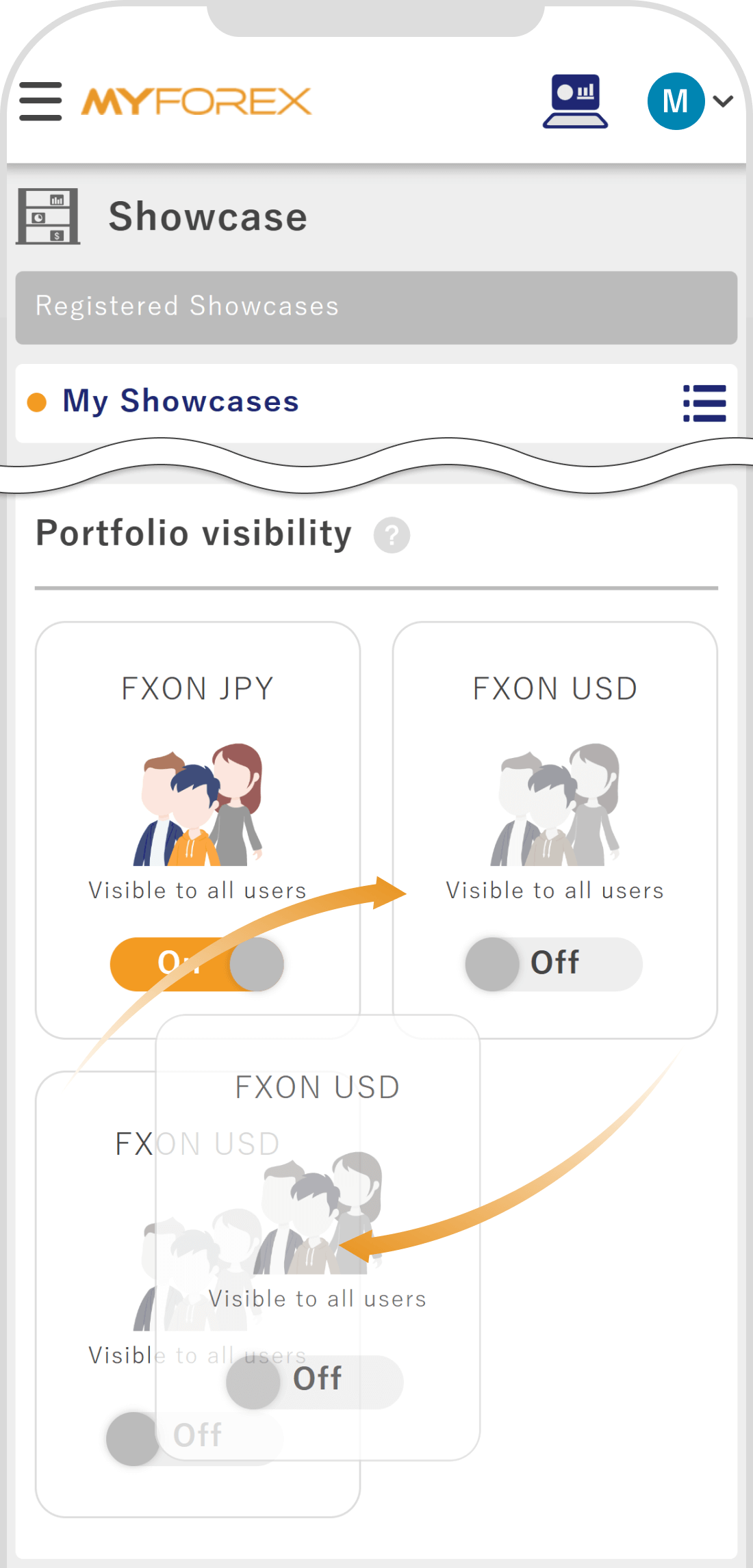
For each portfolio, you can toggle the switch to set it as public or private.
Additionally, you can freely rearrange the order of portfolios using drag-and-drop functionality.
 Notice
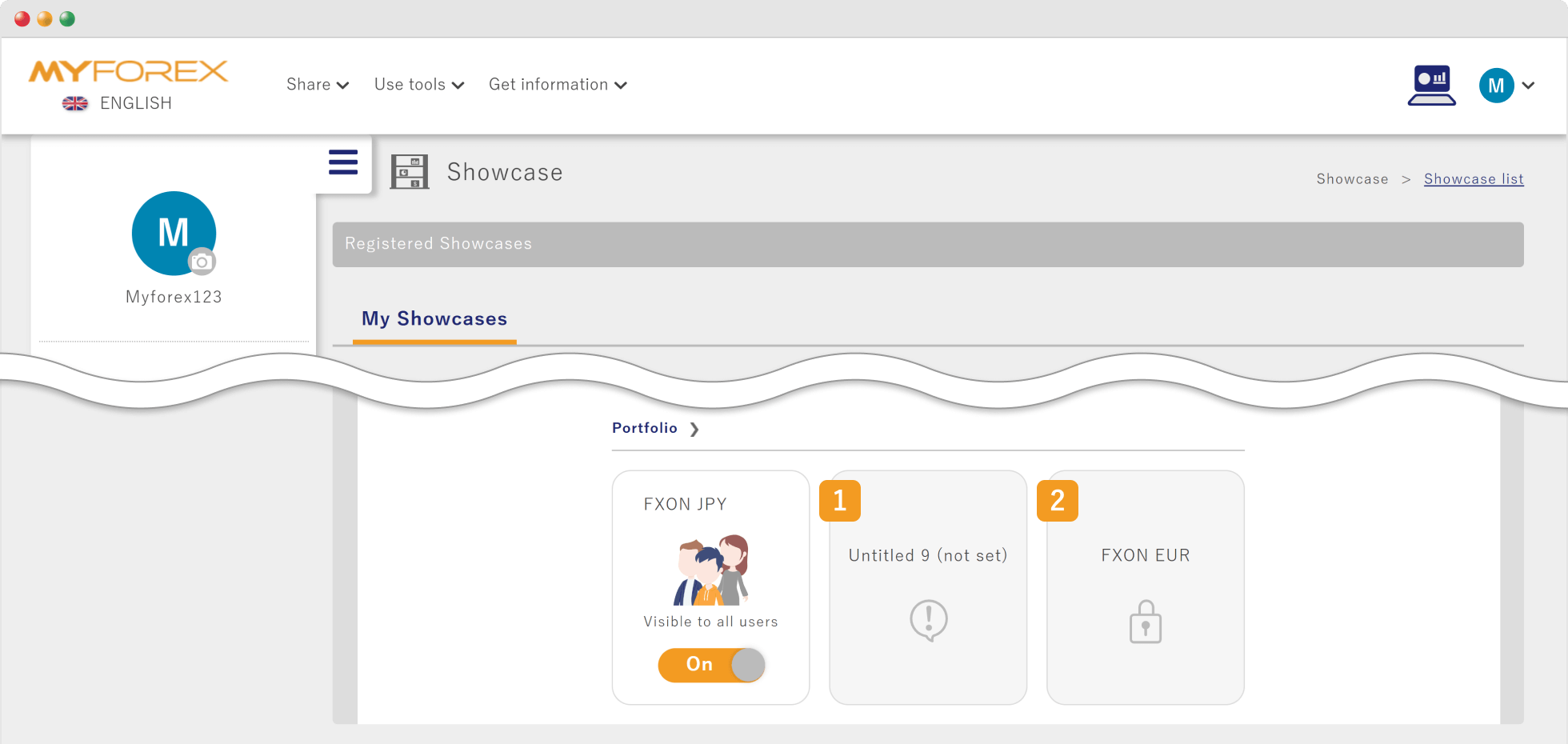
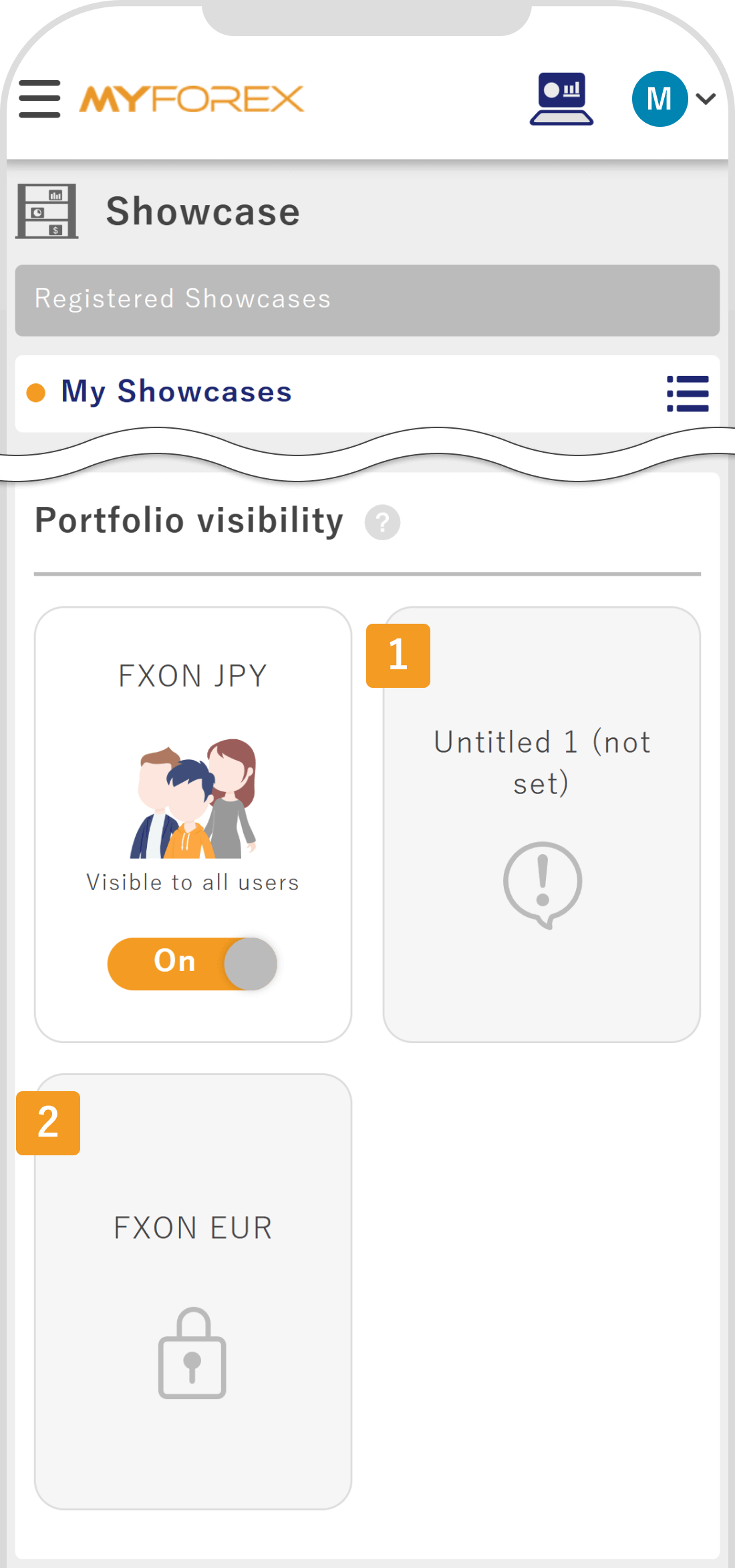
Portfolios with incomplete settings or those set to "Private" cannot be displayed in the showcase. On the showcase editing screen, portfolios with incomplete settings are marked with (1) an exclamation icon, while private portfolios are marked with (2) a lock icon.
| Related articles: | How do I create a portfolio? |
| I want to change the portfolio visibility. |
After setting up the showcase, you will be able to publish and manage your portfolios in one place.
Details on how to modify the showcase visibility settings and share the showcase will be explained in the next steps.
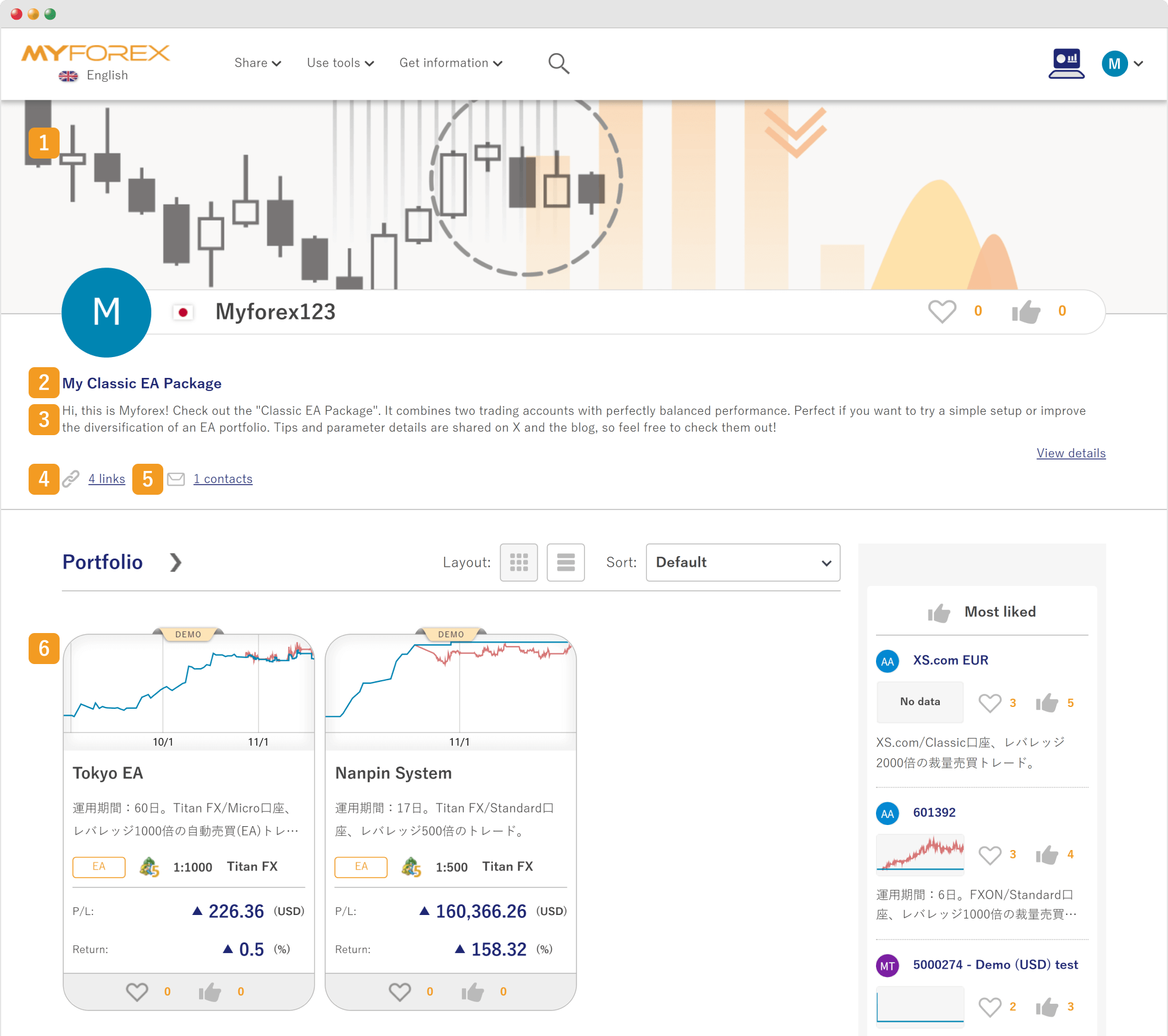
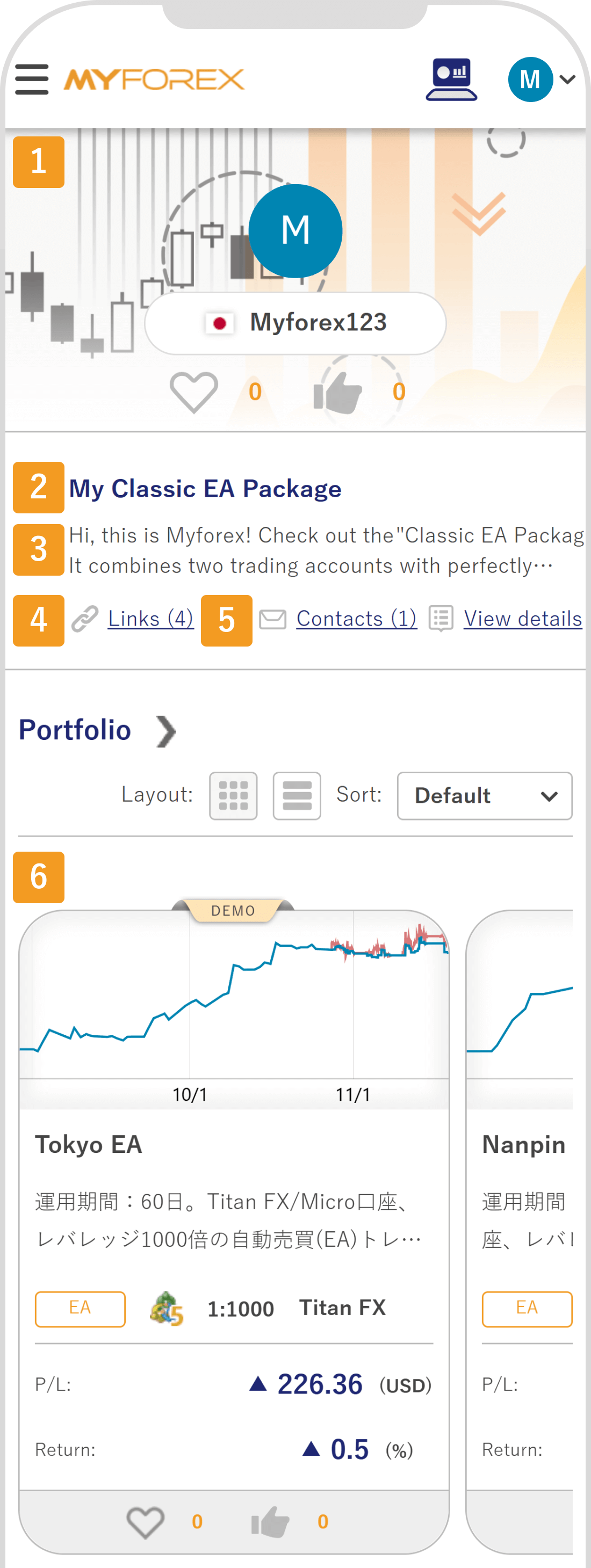
Number | Item | Description |
|---|---|---|
1 | Header image | The image you configured will appear. |
2 | Showcase name | The name you set will be displayed in bold. |
3 | Description | The description you set will be displayed (up to 500 characters). |
4 | Links | You can add and show links to social media and websites. |
5 | Contacts | You can add and show contact details, including email addresses. |
6 | Displayed portfolio | Your published portfolios will be shown in a list. |
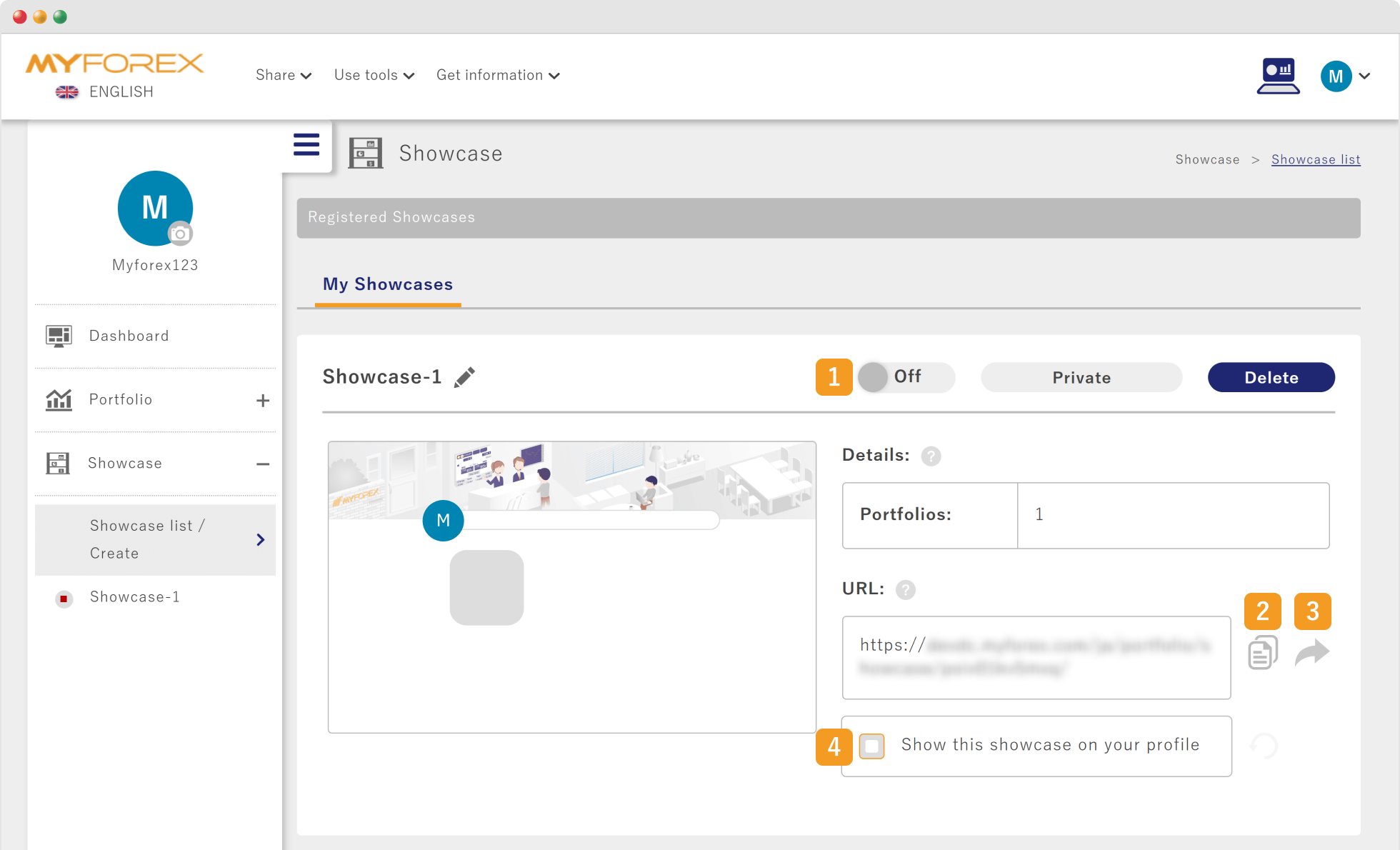
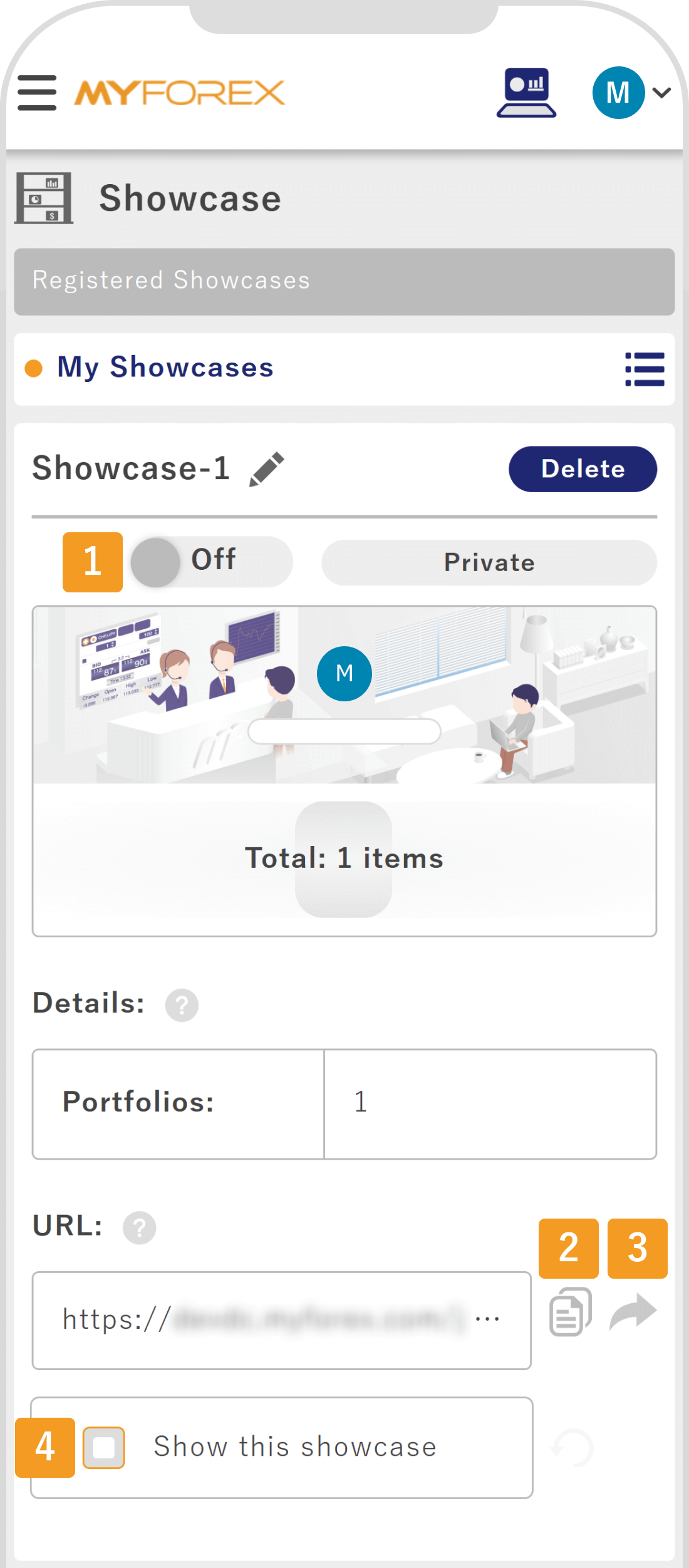
Showcases you create can be made visible to other users by changing the privacy settings. They can also be shared on social media and displayed on your profile page.
You can switch your showcase between public and private using the toggle switch on the list screen. When the visibility setting is turned ON, other users will be able to view your showcase.
Even if you change the visibility settings, you can edit the content at any time. If you switch the showcase back to private, it will no longer be viewable, even if someone accesses a previously shared URL.
NoticeWhen accessing a private showcase, the message “This showcase is private.” will be displayed.
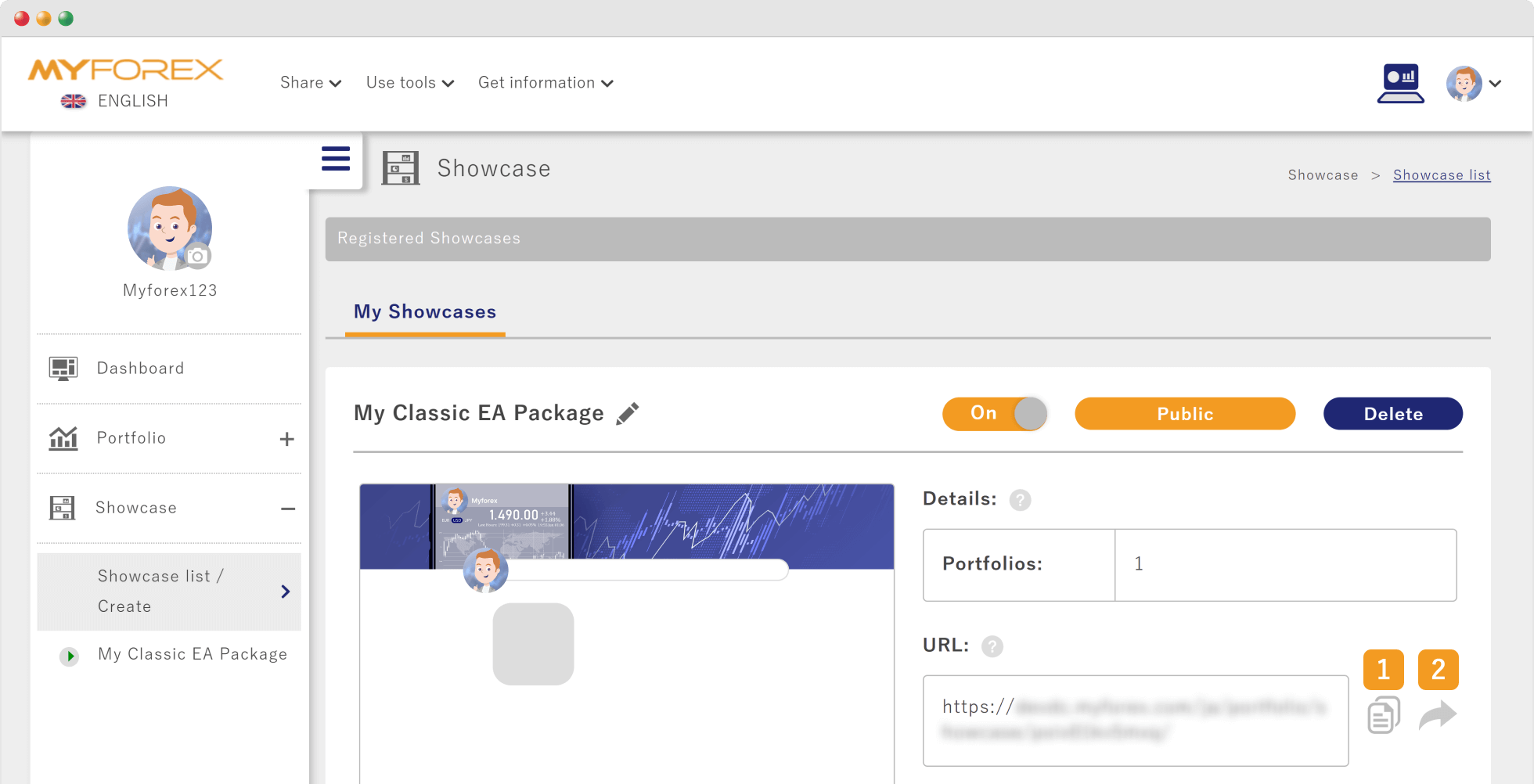
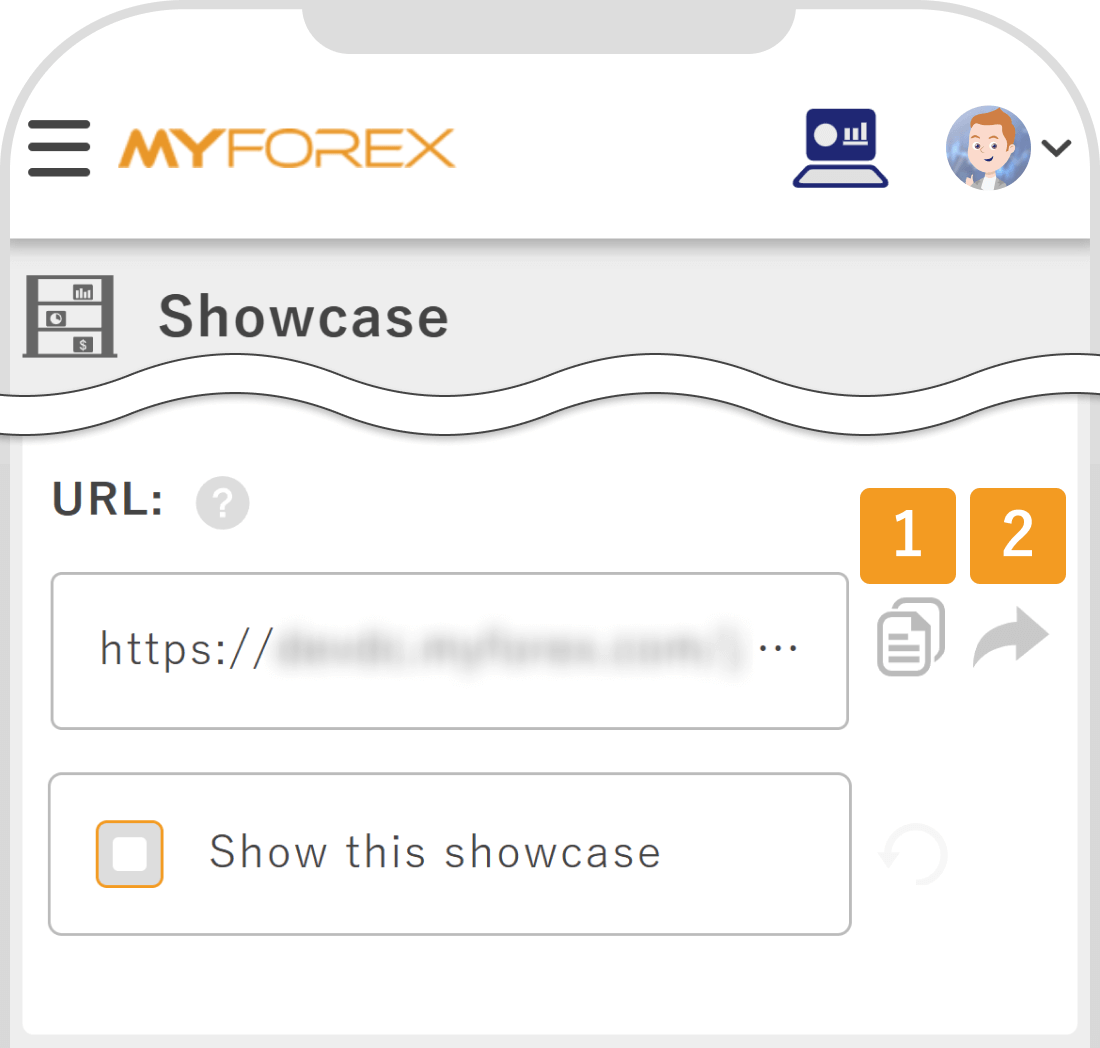
You can share your showcase by (1) copying the URL or by (2) using the social media sharing features.
Number | Item | Description |
|---|---|---|
1 | Copy | By clicking the “Copy” button, you can copy the URL of the showcase page. Please use this URL when sharing the showcase via social media, email, or other platforms. |
2 | Sharing Feature | By clicking the icon of each social media platform, you can post the showcase page directly. You can review and edit the post content before sharing. |
Number | Item | Description |
|---|---|---|
1 | Copy | By tapping the “Copy” button, you can copy the URL of the showcase page. Please use this URL when sharing the showcase via social media, email, or other platforms. |
2 | Sharing Feature | By tapping the icon of each social media platform, you can post the showcase page directly. You can review and edit the post content before sharing. |
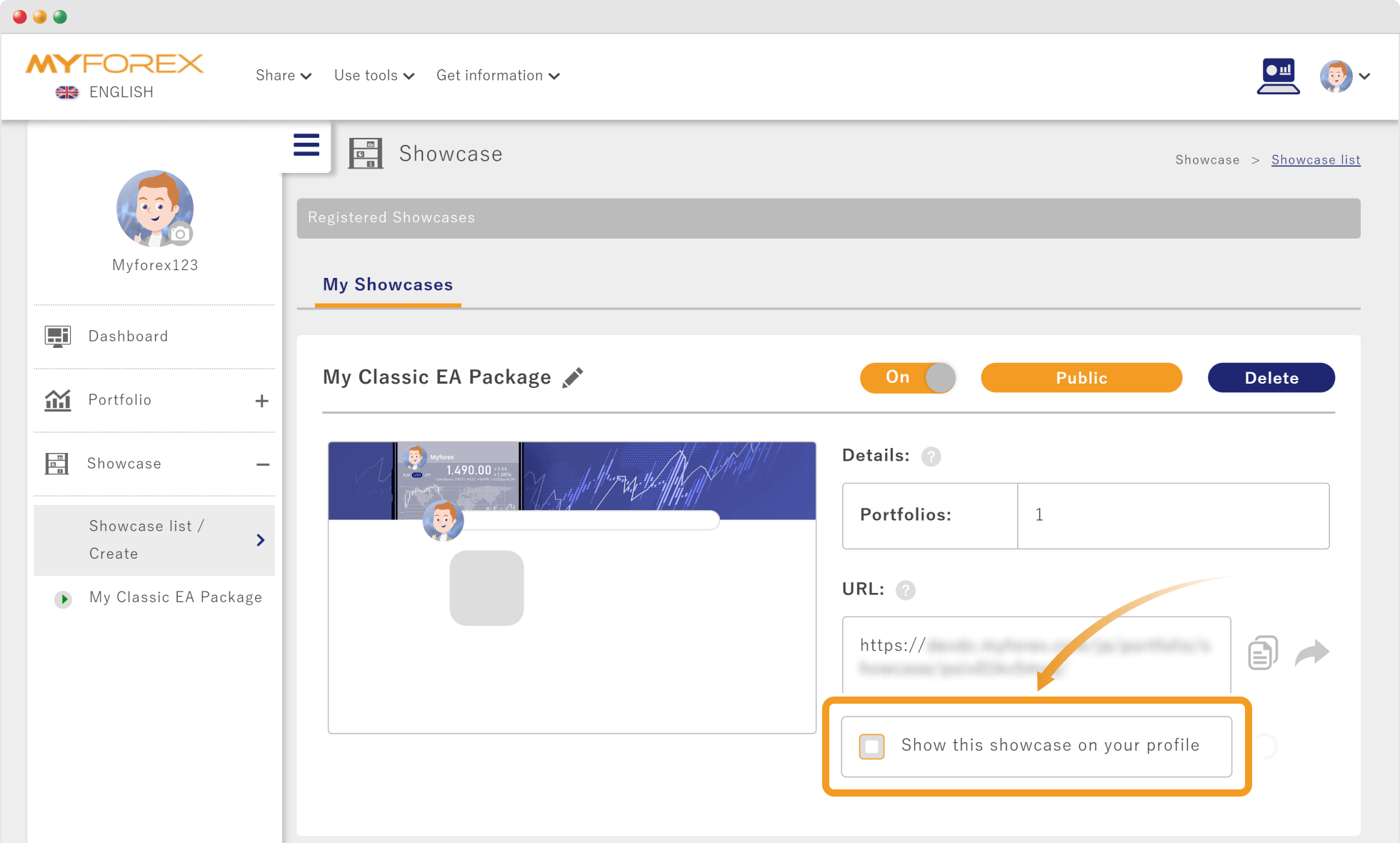
By default, a list of your public portfolios is displayed on your profile page.
However, if you turn ON “Show this showcase on your profile” in the showcase list, the selected showcase will be displayed instead of the profile page.
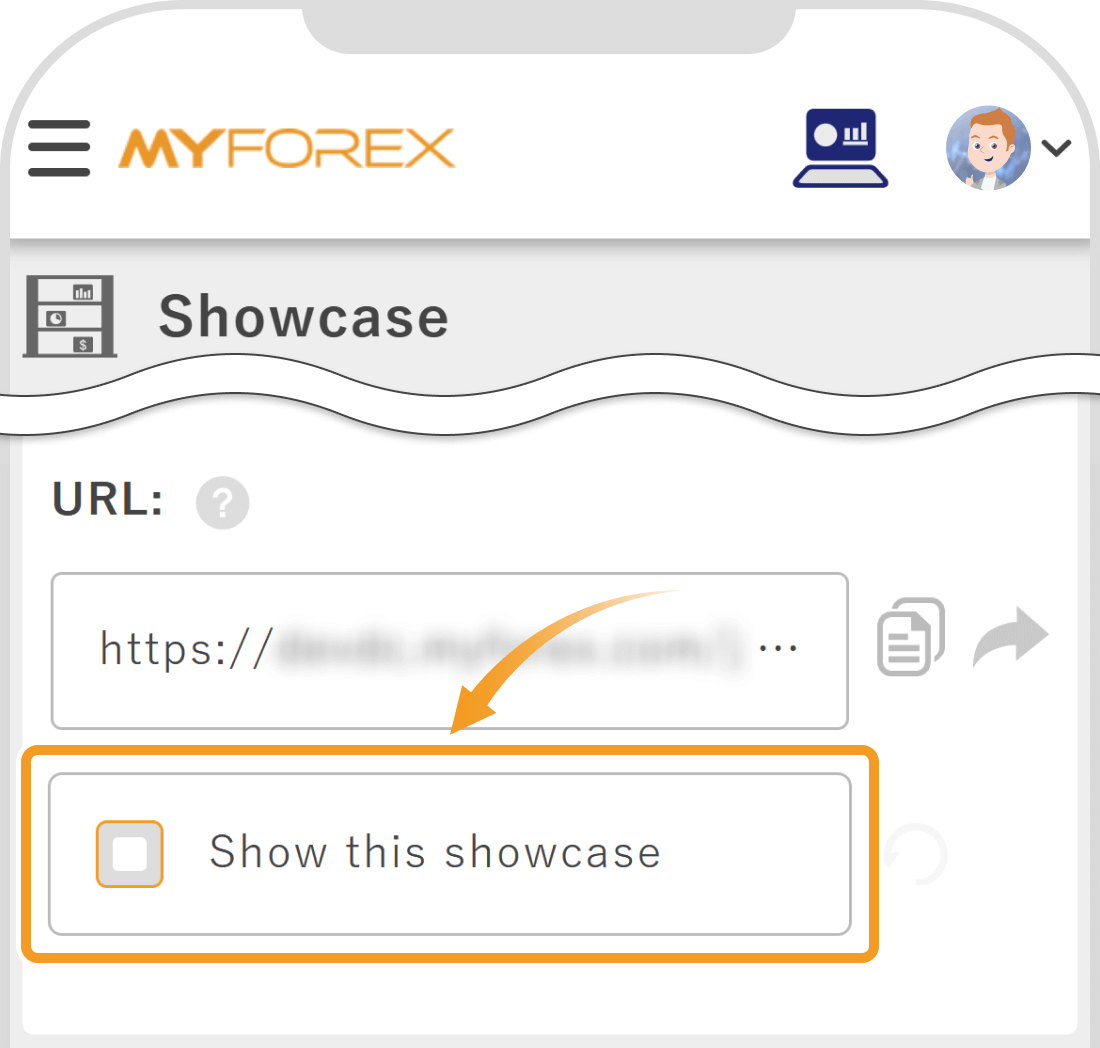
By default, a list of your public portfolios is displayed on your profile page.
If you turn ON “Show this showcase” in the showcase list, the selected showcase will be shown instead of the profile page.
 Tip
TipOnly one showcase can be set to display as your profile page.
If you have multiple showcases, please select the one you want to display as your main showcase.

Created
:2025.10.30

Last updated
:2026.02.11
Was this article helpful?
That’s Great!
Thank you for your feedback
Sorry! We couldn't be helpful
Thank you for your feedback
Feedback sent
We appreciate your effort and will try to fix the article
We hope you find this article useful. Any comments or suggestions will be greatly appreciated.
We are also looking for writers with extensive experience in forex and crypto to join us.
Please contact us at support@myforex.com

Disclaimer:
All information and content provided on this website is provided for informational purposes only and is not intended to solicit any investment. Although all efforts are made in order to ensure that the information is correct, no guarantee is provided for the accuracy of any content on this website. Any decision made shall be the responsibility of the investor and Myforex does not take any responsibility whatsoever regarding the use of any information provided herein.
The content provided on this website belongs to Myforex and, where stated, the relevant licensors. All rights are reserved by Myforex and the relevant licensors, and no content of this website, whether in full or in part, shall be copied or displayed elsewhere without the explicit written permission of the relevant copyright holder. If you wish to use any part of the content provided on this website, please ensure that you contact Myforex.